

 Banko Stoyanov

Introduction: Not All Website Visitors Are Human

Your website might have only a few hundred real visitors per day, yet your hosting account could be consuming an unexpectedly large amount of CPU and memory.
Why?
Because not every visitor is a human being.
Every day, websites receive requests from search engine crawlers, AI crawlers, automated scanners, content scrapers, vulnerability scanners, spam bots, and countless other automated systems.
Some bots are useful. Googlebot, Bingbot, and other legitimate crawlers help people discover your website. Monitoring services can help you detect downtime, and certain automated services are essential for your business.
Unfortunately, many bots have a different purpose.
They can repeatedly visit dynamic pages, execute PHP scripts, query your database, submit forms, attempt logins, scrape your content, and generate thousands of requests within a short period.
On shared hosting, this can become a serious problem.
Unlike a dedicated server, a shared hosting account has defined resource limits. Excessive CPU usage, RAM consumption, entry processes, database activity, and PHP execution can affect your website’s performance and potentially cause resource-limit notifications or temporary restrictions.
The good news is that you don’t need an expensive dedicated server or enterprise security solution to protect your website.
With the right combination of caching, Cloudflare, application-level security, and a few practical configuration changes, you can significantly reduce unnecessary traffic and protect your hosting resources.
Let’s build your website’s defense system step by step.
1. Understand What Harmful Bots Actually Do
Before blocking anything, it is important to understand what you’re protecting against.
There are several common categories of automated traffic.
1.1. Content scraping bots
These bots automatically download website content.
They may visit thousands of pages, product listings, articles, images, or other resources to copy your content and reuse it elsewhere.
The problem is that some scraping bots don’t respect crawling delays or reasonable request limits.
They can generate substantial traffic and repeatedly request dynamic pages, consuming your hosting resources.
1.2. Vulnerability scanners
Automated scanners constantly search the internet for vulnerable websites.
They may request URLs such as:
/wp-admin//wp-login.php/xmlrpc.php/.env/phpmyadmin//wp-config.php/vendor/phpunit//administrator/
Many of these requests are unsuccessful, but they still consume server resources and generate log entries.
A large number of scanners can create unnecessary load, especially on smaller hosting accounts.
1.3. Brute-force and credential-stuffing bots
These bots repeatedly attempt to log in using different passwords and usernames.
WordPress login pages are common targets, but other CMS platforms, administration panels, and custom applications are targeted too.
Apart from the security risk, repeated login attempts can trigger PHP execution and database queries.
1.4. AI crawlers and automated data collectors
AI companies and other organizations use crawlers to collect publicly accessible website content.
Examples of identifiable crawlers include GPTBot, ClaudeBot, and other automated agents.
Not every AI crawler is harmful. However, if you don’t want certain automated services accessing your content, you can configure rules to block them.
Remember that blocking AI crawlers is a content-access decision, not a complete anti-bot security solution.
1.5. Search and parameter abuse
Some bots repeatedly request search pages, filtered product listings, URLs with different query parameters, and other dynamically generated content.
For example:
example.com/?s=hosting
example.com/shop/?filter=color&sort=price
example.com/search.php?q=random-query
These requests can be much more expensive than loading a cached HTML page.
1.6. Fake traffic and aggressive monitoring
Some automated services repeatedly check website availability, follow redirects, or monitor individual pages.
Even legitimate monitoring tools can generate unnecessary traffic if configured to check a website every few seconds.
The important distinction: Your goal should not be to block every bot. Your goal should be to prevent abusive automation from consuming resources while allowing legitimate visitors, search engines, and essential integrations to work normally.
2. Put Cloudflare in Front of Your Website
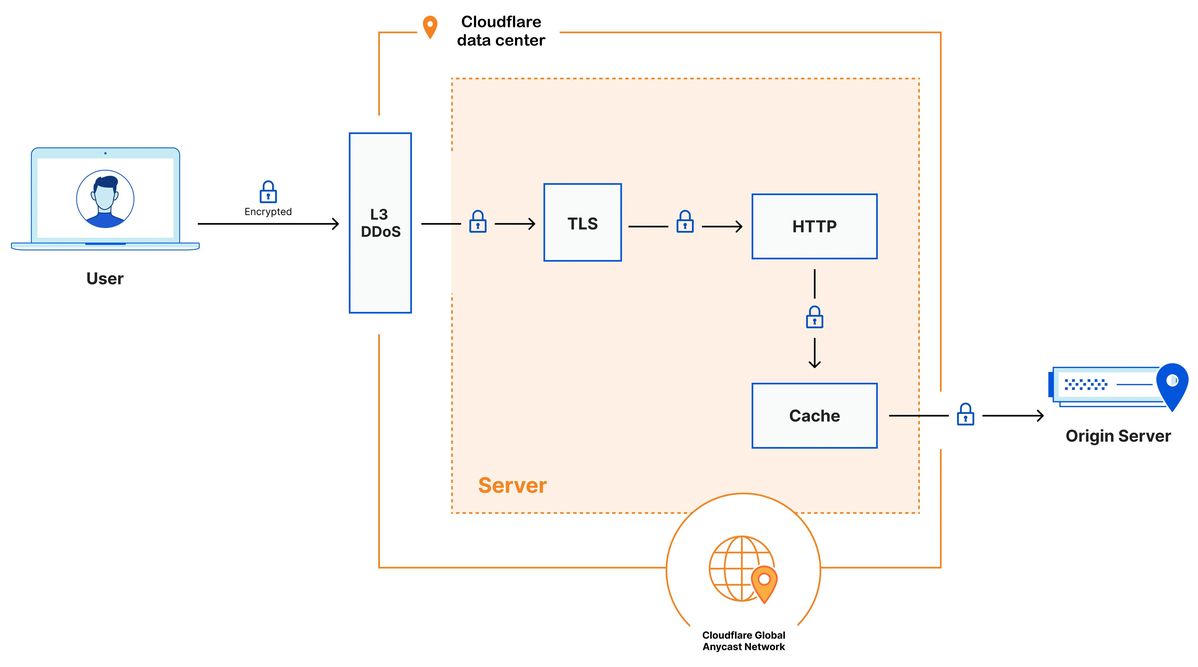
If there is one service I would recommend almost every shared hosting customer consider, it is Cloudflare.
Cloudflare works as a reverse proxy between your visitors and your hosting server.
Instead of every visitor connecting directly to your hosting account, requests first pass through Cloudflare.
This allows Cloudflare to provide:
- DDoS protection.
- Web Application Firewall capabilities.
- Bot protection.
- Traffic filtering.
- Browser caching.
- Content Delivery Network functionality.
- Rate limiting, depending on available features and plan.
- Managed security challenges.
Most importantly, Cloudflare can block or challenge suspicious traffic before it reaches your hosting server.
This is particularly valuable for shared hosting because preventing a request from reaching your server is usually much better than allowing it to execute PHP and trying to deal with the consequences afterward.
2.1. How to connect your website to Cloudflare
The basic process is straightforward.
- Create a Cloudflare account.
- Add your domain.
- Allow Cloudflare to scan your existing DNS records.
- Review the imported records carefully.
- Make sure your website’s A and CNAME records point to the correct hosting destinations.
- Enable the orange cloud (Proxied) for your website records.
- Leave services such as mail, FTP, and other non-HTTP services configured appropriately.
- Change your domain’s nameservers at your registrar to the ones provided by Cloudflare.
- Wait for the nameserver change to propagate.
- Verify that your website, email, SSL certificate, and other services continue working.
Important: Do not blindly proxy every DNS record. Your website’s HTTP and HTTPS records generally need proxying, but mail records such as MX should not be proxied. Mail-related hostnames should also be configured according to the requirements of your email provider.
2.2. Configure SSL/TLS correctly
Once your domain is connected, open:
Cloudflare Dashboard → SSL/TLS → Overview.
Choose:
Full (strict)
This is generally the recommended configuration when your hosting server has a valid SSL certificate.
It encrypts the connection between the visitor and Cloudflare and also between Cloudflare and your hosting server.
Avoid using Flexible SSL as a shortcut. It can leave the connection between Cloudflare and your hosting server unencrypted and may cause redirect problems.
If your hosting account does not yet have a valid certificate, install one first or ask your hosting provider for assistance.
2.3. Enable basic bot protection
Navigate to:
Cloudflare Dashboard → Security → Settings → Bot traffic.
On the Free plan, enable Bot Fight Mode if it is available for your zone.
This provides a basic layer of automated traffic detection and challenges.
Cloudflare’s paid plans provide additional options through Super Bot Fight Mode, including more granular control over automated traffic categories.
A good starting approach is:
- Keep legitimate verified crawlers accessible.
- Challenge suspicious automated traffic when possible.
- Block clearly malicious traffic.
- Monitor security events before introducing more aggressive rules.
Don’t assume that every request with a suspicious-looking User-Agent is malicious.
User-Agent strings can be changed easily, and legitimate services sometimes use unusual ones.
2.4. Block unwanted AI crawlers
If you don’t want AI crawlers collecting your publicly available website content, Cloudflare provides a dedicated setting for blocking AI bots.
Navigate to the bot-related settings and look for the AI bot controls.
You can also configure your robots.txt file to communicate crawling preferences.
However, remember:
robots.txtis a request, not an access-control mechanism.- Well-behaved crawlers may respect it.
- Malicious crawlers can ignore it.
- Blocking an AI crawler does not necessarily block other scraping bots.
Cloudflare’s managed AI bot controls can provide stronger enforcement than relying on robots.txt alone.
2.5. Create Cloudflare WAF rules for suspicious requests
Cloudflare’s Web Application Firewall allows you to create custom rules based on request characteristics.
For example, you might want to challenge requests targeting sensitive administration pages when they originate from suspicious sources.
Potential targets include:
- WordPress login pages.
- XML-RPC endpoints.
- Unused administration interfaces.
- Known malicious URL patterns.
- Expensive application endpoints.
For example, a Cloudflare custom rule could target repeated access to an unused endpoint.
A simple example for WordPress XML-RPC, when you do not use XML-RPC, is:
(http.request.uri.path eq "/xmlrpc.php")
Action: Block.
Before applying this rule, confirm that your website does not depend on XML-RPC for a legitimate integration, application, or publishing workflow.
Do not blindly block /wp-admin/ or /wp-login.php. These paths are used by legitimate website administrators. Protect them using authentication, rate limiting, and appropriate challenges instead.
2.6. Be careful with Cloudflare’s Under Attack Mode
Cloudflare also offers Under Attack Mode.
It is designed for situations involving significant suspicious traffic and can introduce additional browser verification.
It is not something you should necessarily keep enabled permanently.
It may inconvenience real visitors, automated integrations, and some legitimate applications.
Use it when there is a genuine attack or an unusually high volume of suspicious requests, then reassess the situation.
3. Cache Your Website: One of the Most Effective Ways to Save Hosting Resources

Caching is arguably one of the most important performance improvements you can make on a shared hosting plan.
Imagine that 100 people visit the same article.
Without caching, your website might execute PHP, query the database, load plugins, generate HTML, and return the result 100 times.
With effective page caching, the website can generate the page once and serve the stored result to subsequent visitors.
This dramatically reduces unnecessary PHP execution and database activity.
3.1. Enable server-side or application-level caching
If you use WordPress, consider a suitable caching plugin.
Some popular options include:
- LiteSpeed Cache (particularly when your hosting server uses LiteSpeed or OpenLiteSpeed).
- WP Super Cache.
- W3 Total Cache.
- WP Rocket.
The correct choice depends on your hosting environment.
For example, LiteSpeed Cache offers particularly good integration with LiteSpeed servers.
Do not assume that installing a caching plugin automatically enables every possible server-level caching feature. Some functions require compatible server software or additional services.
3.2. Enable page caching
Your caching plugin should ideally generate static HTML copies of publicly accessible pages.
Good candidates include:
- Homepage.
- Blog articles.
- Category pages.
- Public informational pages.
- Public product pages, where appropriate.
However, some pages should generally not be cached as shared public content.
Examples include:
- Customer account pages.
- Shopping carts.
- Checkout pages.
- Payment pages.
- Personalized dashboards.
- Pages containing private user information.
- Pages with user-specific or session-specific content.
Incorrect caching can expose private information or break website functionality.
3.3. Enable browser caching
Browser caching allows visitors’ browsers to reuse previously downloaded resources.
Configure suitable expiration headers for:
- Images.
- CSS files.
- JavaScript files.
- Fonts.
- Other static resources.
For example, a logo doesn’t need to be downloaded from your hosting server every time someone opens another page.
Use cache-busting filenames or versioned assets when updating static files so browsers can retrieve new versions when necessary.
3.4. Enable object caching if available
Object caching stores frequently used database query results and application data.
Depending on the application and hosting environment, Redis or Memcached may be available.
For WordPress websites, persistent object caching can reduce repeated database queries.
However, this is not the same as page caching.
Page caching reduces the need to execute PHP for repeat page requests, while object caching reduces repeated database work when the application does execute.
Ask your hosting provider whether Redis or Memcached is available for your account before installing a related plugin.
3.5. Optimize images and static files
Large images consume bandwidth and take longer to load.
Optimize them using:
- WebP or AVIF where supported.
- Image compression.
- Proper image dimensions.
- Lazy loading.
- Responsive image sizes.
Also minimize unnecessary CSS and JavaScript files.
A lighter website is easier to serve and generally requires fewer resources.
3.6. Combine Cloudflare with website caching
Cloudflare can cache static resources at its edge locations.
This means visitors may receive images, CSS, JavaScript, and other cacheable content from Cloudflare rather than your hosting server.
This is especially helpful for websites with visitors from different geographical locations.
For advanced setups, you can also configure Cloudflare to cache eligible HTML pages.
However, this requires additional care.
Do not simply enable Cache Everything for your entire website without understanding the consequences.
You must exclude personalized pages, administration areas, login pages, carts, checkout pages, and any other content that should not be shared between visitors.
For WordPress, Cloudflare’s Automatic Platform Optimization (APO) is another option worth investigating.
It is designed to improve WordPress delivery and caching integration.
Useful documentation:
https://developers.cloudflare.com/cache/how-to/cache-rules/
https://developers.cloudflare.com/automatic-platform-optimization/
4. Protect Expensive Website Functions
One of the biggest mistakes website owners make is protecting only the homepage while leaving expensive application functions unrestricted.
Bots don’t necessarily need to visit your homepage to consume resources.
They can repeatedly access a single PHP endpoint and create significant server load.
Here are some areas worth reviewing.
4.1. Protect WordPress login pages
WordPress login pages are frequently targeted by automated attacks.
Recommended measures:
- Use a strong administrator password.
- Enable two-factor authentication.
- Limit repeated login attempts.
- Use Cloudflare challenges where appropriate.
- Consider a security plugin with login protection.
- Avoid using predictable administrator usernames.
Do not use extremely restrictive limits that lock out legitimate administrators behind shared office or mobile IP addresses.
4.2. Disable XML-RPC if you don’t need it
WordPress XML-RPC can be used for remote publishing and other integrations.
If your website does not use it, disabling it can remove an unnecessary attack surface.
However, some mobile applications, plugins, and integrations may depend on it.
Check your website’s requirements first.
4.3. Protect search functionality
Search pages can be surprisingly expensive.
For example, a bot can continuously request thousands of different search terms.
This may cause repeated database queries and PHP execution.
Consider:
- Limiting search requests.
- Using a search plugin with efficient indexing.
- Caching popular search results where appropriate.
- Preventing abusive query patterns.
- Applying Cloudflare rate limiting if your plan supports it.
Avoid breaking normal search functionality for real visitors.
4.4. Protect contact forms and registration pages
Contact forms, registration pages, comments, and newsletter subscriptions are common targets for automated spam.
Use:
- Cloudflare Turnstile.
- Honeypot fields.
- Server-side validation.
- Submission rate limits.
- Email verification for registrations.
- Spam filtering.
Cloudflare Turnstile is worth considering because it can help distinguish legitimate interactions from automated submissions without always requiring traditional image-based CAPTCHAs.
Remember that a challenge widget must be properly validated by the website’s backend. Simply displaying a CAPTCHA is not sufficient.
4.5. Review your APIs and AJAX endpoints
Websites often use endpoints that are easy for bots to repeatedly call.
WordPress installations, for example, may use:
admin-ajax.php- WordPress REST API endpoints.
- Custom plugin endpoints.
- WooCommerce AJAX functionality.
Don’t block these endpoints indiscriminately.
Instead, identify which actions are expensive and whether they can be cached, authenticated, rate-limited, or protected with application-level controls.
5. Use Rate Limiting to Control Excessive Requests
Rate limiting is one of the most useful anti-bot techniques.
It prevents a single source, account, or session from making an excessive number of requests within a defined period.
For example, you might want to limit repeated login attempts or requests to an expensive search endpoint.
Cloudflare offers rate limiting functionality, although availability and configuration options depend on the plan.
Some practical use cases include:
| Endpoint | Suggested protection |
|---|---|
/wp-login.php |
Login rate limiting |
/xmlrpc.php |
Block if unused |
| Contact forms | Submission rate limiting |
| Registration pages | Rate limiting and verification |
| Search endpoints | Request limits |
| Public APIs | Per-endpoint quotas |
| Expensive custom PHP scripts | Rate limiting and caching |
The exact thresholds should be based on normal website traffic, not arbitrary numbers.
For example, a website receiving 500 visitors per day has different requirements from an online store receiving 50,000 visitors per day.
Also remember that IP-based rate limiting alone is not enough. Sophisticated bots can rotate IP addresses or use residential proxies.
A good solution combines rate limiting with other detection methods.
6. Use robots.txt Correctly
Your website should have a properly configured robots.txt file.
This file communicates which areas well-behaved crawlers should avoid.
For example:
User-agent: *
Disallow: /wp-admin/
Allow: /wp-admin/admin-ajax.php
Disallow: /wp-login.php
Disallow: /cart/
Disallow: /checkout/
Disallow: /my-account/
Adjust these paths according to your actual website.
For example, the WordPress administration area may need special handling because some frontend functionality relies on admin-ajax.php.
You can also add specific rules for crawlers you don’t want accessing your content.
However, there is an important limitation:
robots.txt does not block visitors.
It only communicates crawling preferences to compliant bots.
A malicious bot can ignore it completely.
Use Cloudflare, firewall rules, and application-level protection for actual enforcement.
7. Optimize WordPress and Other PHP Applications
Cloudflare and caching are excellent, but your website itself also needs to be optimized.
A poorly optimized application can consume substantial CPU and memory even with relatively low traffic.
Here are some recommendations.
7.1. Remove unnecessary plugins
Every additional WordPress plugin can introduce more PHP code, database queries, scheduled tasks, and external requests.
Review your installed plugins regularly.
Remove those you no longer use.
Avoid installing multiple plugins that perform the same function.
7.2. Keep PHP updated
Use a supported PHP version compatible with your website and plugins.
Newer PHP versions can provide performance and security improvements, but test compatibility before switching.
7.3. Enable OPcache
OPcache stores compiled PHP bytecode in shared memory, reducing the need to compile scripts repeatedly.
If available in your hosting environment, it is worth enabling.
Ask your hosting provider if you are unsure whether it is active.
7.4. Optimize database queries
For WordPress:
- Clean up unnecessary revisions.
- Remove expired transients.
- Review oversized database tables.
- Remove unused plugin data carefully.
- Avoid plugins that execute expensive queries on every page request.
Always create a backup before performing database cleanup.
7.5. Review WP-Cron
WordPress uses WP-Cron to execute scheduled tasks.
On busy websites, scheduled events may be triggered frequently by visitor requests.
If your hosting environment supports real cron jobs, you can consider replacing visitor-triggered WP-Cron execution with a scheduled server cron job.
This is especially useful for websites with resource-intensive scheduled tasks.
Do not disable WP-Cron without configuring an alternative scheduler, or scheduled tasks may stop working.
7.6. Avoid unnecessary external requests
Some plugins contact external services during normal page loads.
If those services are slow or unavailable, they can increase PHP execution time and consume hosting resources.
Review plugins that make frequent external HTTP requests.
8. Protect Your Hosting Account at the Server Level
Not all protection needs to happen through Cloudflare or WordPress.
Your hosting control panel may provide additional tools.
Depending on your hosting platform, look for:
- Resource usage monitoring.
- CPU usage statistics.
- Physical memory usage.
- Entry process statistics.
- I/O usage.
- Process limits.
- Raw access logs.
- Error logs.
- PHP configuration.
- Cron job management.
On cPanel-based shared hosting, the Resource Usage interface (often powered by CloudLinux) can be particularly useful.
It may show whether your account is reaching its resource limits.
Pay attention to these indicators:
CPU: Excessive PHP execution or database activity can increase CPU usage.
Physical memory: Heavy scripts and poorly optimized plugins may consume too much RAM.
Entry Processes: Too many simultaneous requests can exhaust the available entry process limit.
I/O: Excessive disk activity can slow down your website.
I/O Operations Per Second: Frequent disk operations can become a bottleneck.
When investigating a resource issue, don’t focus only on the number of visitors.
A website with 100 visitors repeatedly executing expensive PHP scripts may consume more resources than a website with thousands of visitors served almost entirely from cache.
This is why caching and edge protection are so important.
9. Analyze Your Access Logs to Find the Bots
You cannot effectively protect a website if you don’t know what is happening.
Access logs can reveal:
- Which IP addresses generate the most requests.
- Which URLs are requested most frequently.
- Whether requests are concentrated on a specific PHP endpoint.
- Which User-Agent strings are being used.
- Whether a particular bot repeatedly requests nonexistent URLs.
- Whether suspicious traffic originates from particular networks.
Look for patterns such as:
- Hundreds of requests within a few minutes from one IP.
- Repeated requests to the same login page.
- Thousands of different search queries.
- Large numbers of requests to nonexistent PHP files.
- Repeated access to expensive dynamic endpoints.
- Traffic spikes from unexpected locations.
Remember that a high request count does not automatically mean malicious activity.
Googlebot, uptime monitoring services, legitimate API integrations, and other automated systems may generate substantial traffic.
Always verify the source before blocking it.
You can use Cloudflare Security Analytics and Security Events to investigate traffic that reaches Cloudflare.
For requests that reach your origin server, review the hosting account’s access logs.
10. Prevent Visitors from Bypassing Cloudflare
This is an important step that many website owners overlook.
Cloudflare protects traffic passing through its proxy.
But what happens if someone discovers your hosting server’s original IP address?
They may attempt to connect directly to your hosting server, bypassing Cloudflare’s filtering and caching.
This can undermine your protection.
If your hosting environment supports it, ask your hosting provider whether direct access to your website can be restricted to Cloudflare’s published IP ranges.
This requires correct server-level firewall configuration.
Be careful:
- Do not block your hosting provider’s monitoring systems.
- Do not block legitimate management or maintenance access.
- Keep the Cloudflare IP ranges updated.
- Make sure the real visitor IP is restored correctly in your server logs.
If your server uses Cloudflare’s proxy, your hosting environment should also be configured to recognize the original visitor IP rather than treating every request as coming from Cloudflare.
This makes logging and IP-based security controls much more useful.
11. Use AI to Configure and Improve Your Website’s Protection
You don’t need to be a professional server administrator to start improving your website’s security.
AI tools can help you understand configuration options, analyze logs, write Cloudflare rules, optimize caching, and troubleshoot problems.
You can use ChatGPT, Claude, Gemini, or Codex as technical assistants.
However, there is one important rule:
Never blindly copy and apply firewall rules or server configuration generated by AI.
AI tools can make mistakes, misunderstand your hosting environment, or suggest rules that block legitimate visitors.
Give the AI as much technical information as possible and ask it to explain the consequences of every proposed change.
Here are some practical prompts you can use.
11.1. Ask ChatGPT to audit your Cloudflare configuration
Act as an experienced Cloudflare security and
performance engineer.

I have a website hosted on a shared hosting plan.

My primary goal is to reduce malicious bot traffic,
unnecessary PHP executions, database queries, and
hosting resource consumption.

Please help me configure Cloudflare for maximum
protection without breaking legitimate visitors.

My website details:

- CMS: [WordPress / Joomla / Other]
- Cloudflare plan: [Free / Pro / Other]
- Hosting server: [LiteSpeed / Apache / Nginx / Unknown]
- Website type: [Blog / Business / Store / Other]
- Important integrations: [List them]

Please review the recommended configuration for:

1. Bot Fight Mode and available bot protection.
2. WAF custom rules.
3. Rate limiting.
4. Cache Rules.
5. Browser cache.
6. AI crawler blocking.
7. Login and administration protection.
8. SSL/TLS settings.
9. Protection against direct origin access.

For every recommendation:

- Explain what it does.
- Explain which hosting resources it saves.
- Identify potential compatibility problems.
- Provide the exact Cloudflare dashboard location.
- Provide the rule expression when applicable.

Do not recommend rules that blindly block legitimate
search engine crawlers or website functionality.

Separate safe recommendations from advanced rules
that require testing.
11.2. Ask Claude to analyze your website’s access logs
Claude can be particularly useful when you have large log files or want to identify patterns.
Act as a senior web hosting security analyst.

Analyze the access log data I provide.

My objective is to identify bots, crawlers, scrapers,
and suspicious traffic that may be overloading my
shared hosting account.

Please identify:

1. IP addresses generating unusually high request
   volumes.
2. Most frequently requested URLs.
3. Suspicious User-Agent strings.
4. Repeated requests to PHP scripts.
5. Potential brute-force attempts.
6. Search and scraping activity.
7. Requests that may generate unnecessary PHP
   executions and database queries.
8. Legitimate search engine crawlers that should
   not be blocked.

Create a prioritized list of recommendations.

For each suspicious IP or pattern, explain why it
looks suspicious and what additional verification
is necessary before blocking it.

Do not assume that a high request count automatically
means malicious activity.

Here are my logs:

[PASTE ANONYMIZED LOG DATA]
Avoid uploading passwords, session cookies, authorization headers, private customer information, or other sensitive data.
11.3. Ask Gemini to optimize your caching strategy
Act as a website performance and caching specialist.

Help me optimize my website to reduce shared hosting
resource consumption.

My website uses:

- CMS: [Your CMS]
- PHP version: [Your version]
- Web server: [LiteSpeed / Apache / Nginx / Unknown]
- CDN: Cloudflare
- Cache plugin: [Your plugin]

Please design a complete caching strategy covering:

1. Full-page caching.
2. Browser caching.
3. Static asset caching.
4. Cloudflare CDN caching.
5. HTML caching, if appropriate.
6. Database and object caching.
7. Cache exclusions for logged-in users.
8. WooCommerce or other dynamic functionality,
   if applicable.
9. Cache invalidation when content changes.

Explain which settings should be enabled and which
should remain disabled.

Do not suggest caching private or personalized
content for all visitors.

My main goal is to minimize PHP executions and
database queries while keeping the website functional.
11.4. Ask Codex to review your website’s configuration
Codex can be useful when working with actual website files and code.
For example, you can use it to inspect a website project and identify performance or security problems.
Act as a senior PHP and web application security
engineer.

Review this website's codebase for issues that may
cause excessive resource consumption on shared hosting.

Look for:

1. PHP scripts performing unnecessary database queries.
2. Expensive operations executed on every page load.
3. Inefficient loops and database queries.
4. Unprotected AJAX endpoints.
5. Unrestricted search functionality.
6. Missing caching opportunities.
7. Unnecessary external HTTP requests.
8. Potential abuse of public endpoints.
9. Missing validation and rate limiting.

Prioritize improvements that reduce CPU usage,
memory consumption, database activity, and PHP
execution time.

Do not modify production files automatically.

First provide a report explaining each problem,
its impact, and the proposed solution.

For every proposed code change, explain how to
test it without breaking existing functionality.
11.5. Ask any AI to create Cloudflare WAF rules
This prompt is particularly useful if you want to generate custom Cloudflare rules.
Act as a Cloudflare WAF rules specialist.

I want to protect my shared hosting website from
malicious automated traffic.

My website is [CMS / application].

Please propose Cloudflare custom rules for:

- Blocking unused and unnecessary endpoints.
- Protecting administration and login pages.
- Challenging suspicious automated requests.
- Protecting expensive search functionality.
- Blocking unwanted crawlers.
- Reducing unnecessary requests to PHP endpoints.

For every rule, provide:

1. The exact Cloudflare expression.
2. The recommended action.
3. The Cloudflare plan requirements.
4. Potential false positives.
5. How to test the rule.
6. How to disable or roll it back.

Do not use Enterprise-only bot score fields unless
my Cloudflare plan supports them.

Do not block verified search engines or essential
website integrations.

Prioritize managed challenges over permanent blocks
when the traffic is suspicious but not conclusively
malicious.
The best approach is to ask AI to analyze your actual environment rather than asking it to generate a universal configuration.
A WordPress blog, a WooCommerce store, and a custom PHP application have different requirements.
12. Recommended Cloudflare Configuration Checklist
Here is a practical starting checklist for a typical shared hosting website.
| Feature | Recommendation |
|---|---|
| DNS proxy | Enabled for website records |
| SSL/TLS | Full (strict), with a valid origin certificate |
| Bot Fight Mode | Enable where available |
| AI bot controls | Configure according to your content policy |
| WAF | Enable available managed protections |
| Security events | Monitor regularly |
| Browser caching | Enable appropriate expiration |
| Static file caching | Enable |
| HTML caching | Only with carefully configured exclusions |
| Rate limiting | Protect sensitive and expensive endpoints |
| Under Attack Mode | Use during genuine attacks |
| Origin IP protection | Restrict direct access where supported |
| robots.txt | Configure for legitimate crawlers |
Remember that Cloudflare features and availability change depending on the subscription.
For example, the Free plan provides basic Bot Fight Mode, while Super Bot Fight Mode and more granular bot controls are available on higher-tier plans.
You should always check the current Cloudflare dashboard and documentation before building a configuration around a specific feature.
13. What NOT to Do When Protecting Your Website
Sometimes an aggressive security configuration causes more problems than the bots themselves.
Avoid these common mistakes.
1. Blocking every bot.
You may accidentally block Googlebot, Bingbot, monitoring services, or integrations that your website needs.
2. Caching everything without exclusions.
You could expose private customer information, break shopping carts, or serve incorrect personalized content.
3. Blocking entire countries without investigating traffic.
Geographical filtering can block real customers and legitimate visitors. Use it only when justified by your website’s audience and threat patterns.
4. Using CAPTCHAs everywhere.
Excessive challenges damage user experience and can reduce conversions.
5. Installing too many security plugins.
Multiple plugins may duplicate functionality and increase PHP execution, database activity, and administrative complexity.
6. Blocking IP addresses based on one suspicious request.
Some IP addresses are shared by thousands of legitimate users. Look for repeated patterns and additional evidence.
7. Ignoring the original server IP.
Cloudflare cannot protect your origin from direct requests if attackers can bypass the proxy.
8. Disabling scheduled tasks without an alternative.
Your WordPress updates, scheduled posts, emails, and other background processes may stop working.
9. Applying AI-generated rules without testing.
A single incorrect WAF expression can block legitimate visitors or break website functionality.
14. A Practical 30-Minute Protection Plan
If you don’t know where to start, follow this order.
First 10 minutes: Protect the website at the edge
- Create or configure your Cloudflare account.
- Enable DNS proxying for website records.
- Configure SSL/TLS Full (strict).
- Enable available basic bot protection.
- Check that your website works correctly.
Next 10 minutes: Reduce hosting resource consumption
- Install or configure a compatible page caching solution.
- Enable browser caching.
- Optimize images.
- Check whether object caching is available.
- Exclude private and dynamic pages from public caching.
Final 10 minutes: Protect expensive endpoints
- Review login protection.
- Check whether XML-RPC is necessary.
- Protect contact and registration forms.
- Review search functionality.
- Inspect Cloudflare Security Events.
- Check hosting resource usage and access logs.
This is a starting point, not a complete security audit. More advanced rules should be introduced gradually and tested.
15. Final Thoughts: Your Best Defense Is a Combination of Multiple Layers
Protecting a shared hosting account from harmful bots isn’t about finding one magical plugin or enabling one security setting.
It is about reducing the amount of unnecessary work your hosting server has to perform.
Think of your protection strategy as several layers:
- Cloudflare: Filters suspicious requests before they reach your server.
- Caching: Serves repeat content without executing PHP every time.
- Rate limiting: Prevents excessive requests to sensitive endpoints.
- Application security: Protects login pages, forms, APIs, and other functionality.
- Website optimization: Reduces CPU, RAM, database, and disk usage.
- Monitoring: Helps you identify problems before they become serious.
For shared hosting customers, this combination can make a substantial difference.
A website that serves most of its public traffic from cache and filters abusive requests at the CDN level is generally much more efficient than one that executes PHP for every incoming request.
You don’t necessarily need a more expensive hosting plan just because your website is receiving automated traffic.
Sometimes, you simply need to make sure that the traffic reaching your hosting account is legitimate and that your website is not doing unnecessary work.
Start with Cloudflare, configure caching properly, protect expensive endpoints, and monitor your resource usage.
Your hosting account will thank you!
Useful Resources
Here are some official resources worth bookmarking:
- Cloudflare: https://www.cloudflare.com/
- Cloudflare Bot Protection: https://developers.cloudflare.com/bots/
- Cloudflare Cache Rules: https://developers.cloudflare.com/cache/how-to/cache-rules/
- Cloudflare WAF: https://developers.cloudflare.com/waf/
- Cloudflare Turnstile: https://developers.cloudflare.com/turnstile/
- Cloudflare Automatic Platform Optimization: https://developers.cloudflare.com/automatic-platform-optimization/
- WordPress Performance: https://wordpress.org/documentation/
- OWASP Bot Management and Anti-Automation: https://cheatsheetseries.owasp.org/cheatsheets/Bot_Management_and_Anti-Automation_Cheat_Sheet.html
Need help protecting your website?
If you are a CooliceHost customer and notice unusual resource consumption, CPU spikes, excessive entry processes, or suspicious traffic, contact our support team.
We can help you investigate the problem, identify potential causes, and determine whether your website needs additional optimization or protection. Also, we have server side protection: Mod Security WAF; CSF Firewall – blocks IP addresses following repeated WAF violations and multiple-connection attacks, including those involving bots and Imunify.

The objective is simple: keep your website fast, secure, and operating efficiently within your shared hosting resources.
 Banko Stoyanov


