

 Banko Stoyanov
Microsoft consumer mail services (outlook.com, hotmail.com, live.com, msn.com) work very differently from Google or Yahoo, so “whitelisting” is limited and partly not possible at the IP level for senders. Below is the realistic, correct way to get trusted delivery. The blocks are mainly because Microsoft tries to protect the users from unwanted spam and phishing. And because of that new IPs that are not familiar to Microsoft network are listed by default. But there is a way to whitelist your IP and your mails will go to the inbox.
You can whitelist yourself by following these easy steps:
IP delisting (if you’re blocked)
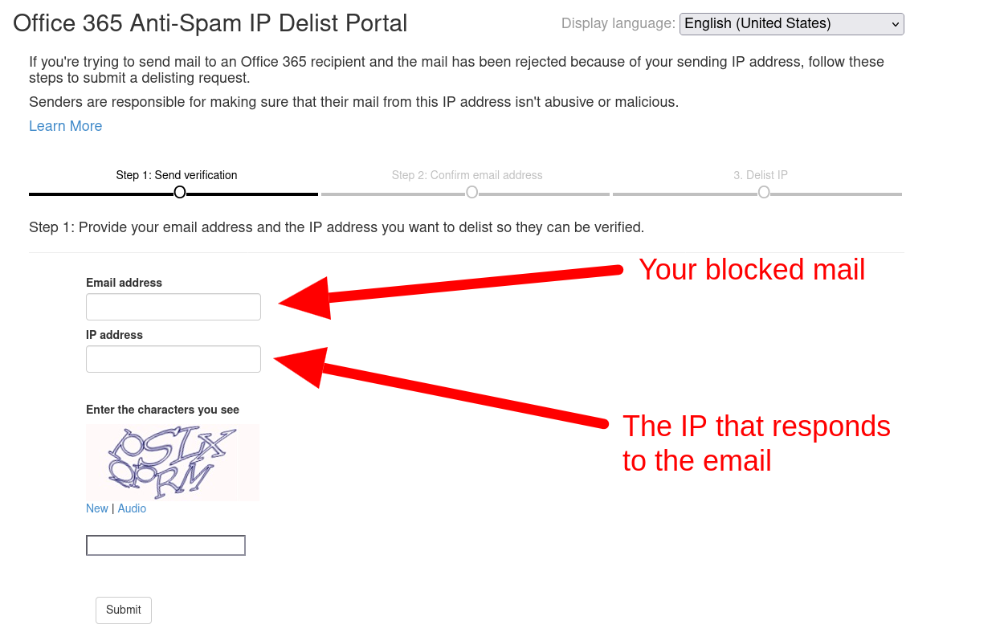
- Go to Office 365 Anti-Spam IP Delist Portal.
- Fill out the information in the fields: IP address, Mail and the Code provided.
- Open your email and click on the confirmation link once you submitted the form.

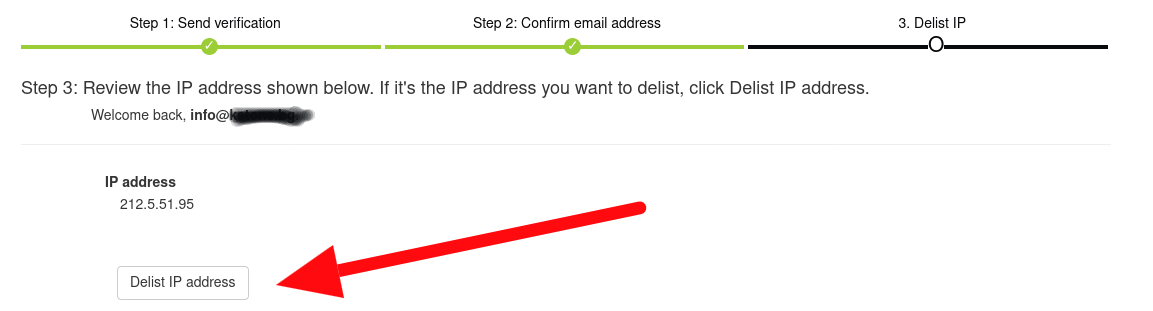
- Click on the Delist IP address.
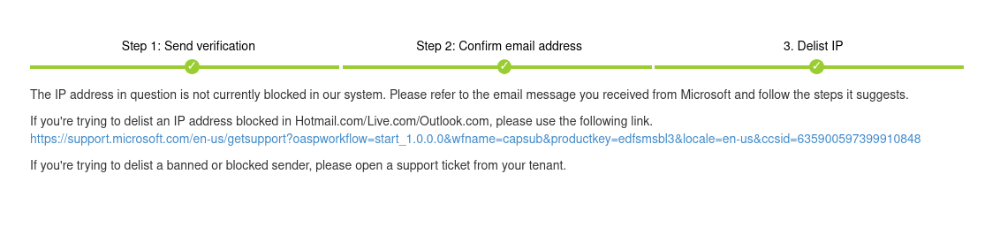
- Now your IP address and email are successfully sent to review and are in a quote waiting approval process which it takes some time.
There is also more you can do to get your emials go strigth to Inbox of Microsoft mails services. If eligible, Microsoft usually removes blocks within 24–48 hours, assuming:
- Low spam complaints
- Valid authentication
- Clean sending behavior
Important truth (before you try anything)
Microsoft does NOT offer manual IP or domain whitelisting (except Delisting) for external senders on Outlook.com / Hotmail / Live / MSN.
That means:
❌ You cannot submit an IP and ask Microsoft to “trust it forever”
❌ You cannot whitelist an email address globally across all Outlook users
What is possible:
- User-level allowlisting
- Sender reputation building
- Microsoft postmaster tools
- Spam complaint & delisting workflows
How recipients can whitelist you (user-side)
This is the only true whitelist in Outlook consumer mail.
A. Add sender to Safe Senders (best method)
User steps:
- Open Outlook.com
- Settings → Mail → Junk email
- Under Safe senders and domains
- Add:
- Your sending email (e.g.
info@yourdomain.com) - Or your domain:
yourdomain.com
- Your sending email (e.g.
- Save
Mail from these senders will never go to spam for that user.
B. Mark email as “Not Junk”
If your email landed in spam:
- Open Junk folder
- Select your message
- Click Not junk
- Optionally check “Always trust this sender”
This feeds Microsoft’s ML system.
Microsoft Postmaster Tools (MANDATORY for senders)
If you’re sending bulk or transactional mail, this is critical.
Register here:
Microsoft SNDS & Postmaster
https://postmaster.live.com
You can:
- Monitor IP reputation
- See spam complaint rates
- See block status
- Request delisting
Email authentication (ABSOLUTELY REQUIRED)
Microsoft heavily enforces authentication.
You MUST have:
SPF
DKIM
- 2048-bit preferred
- Strict alignment
DMARC
Minimum recommended:
For high trust:
or
Outlook favors aligned DKIM over SPF
Please read more here: SPF, DKIM, DMARC: The 3 Key Elements of Email Authentication
IP & domain reputation tips (Microsoft-specific)
Microsoft is extremely sensitive to behavior.
Do:
- Warm up IPs slowly (very important)
- Keep spam complaints < 0.1%
- Remove inactive users
- Use consistent From address
- Use reverse DNS (PTR)
- Match HELO hostname to rDNS
Don’t:
- Send to purchased lists
- Send sudden volume spikes
- Mix marketing + transactional on same IP
- Reuse burned IPs/domains
 Banko Stoyanov

